Contact us today!
(518) 203-2110

Evolve IT

Evolve IT has been serving the Saratoga Springs area since 1995, providing IT Support such as technical helpdesk support, computer support, and consulting to small and medium-sized businesses.

Tip of the Week: How to Download All of Your Media From Google Photos

Tip of the Week: How to Download All of Your Media From Google Photos

If you use Google Photos to store your videos and photos, chances are that you’ve accumulated plenty of media that you’d be devastated to lose. For this week’s tip, we’ll discuss how you can download all of the media you’ve accumulated for your Google account and store it on a local device.

There are plenty of reasons why you would want to download your media. For one, backing up your media locally is a major best practice. This keeps a freak accident from destroying all of your precious memories (or memes). Furthermore, you may want to use photo or video-editing software to customize your photos to your liking. Fortunately, Google makes the download process pretty simple.

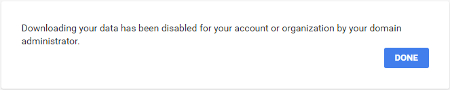
To get started, look for a tool called Google Takeout. It’s worth noting that you may not be able to use this feature if your company’s network or domain administrator has disabled Takeout, specifically for the purpose of making sure employees don’t take off with valuable files or sensitive information.
download google ib 1

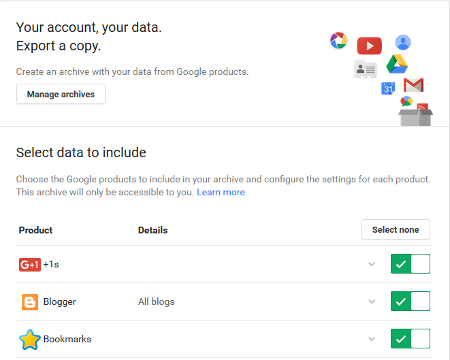
If you can use Takeout, you’ll be directed to a page where you can download all of your Google data associated with your Google apps. This may be more than you initially realized, as the list includes more than 20 Google products.
download google ib 2

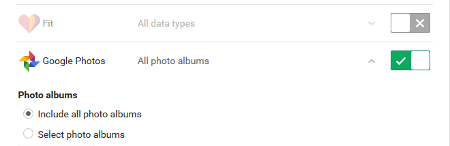
By default, all of Google’s apps will be selected and ready for download. You can deselect any apps for which you don’t want to download data from. Keep any apps checked green if you’d like to download data from them. For just Google Photos, make sure it’s checked green. Just hit Select all and select the box to the right of Google Photos.

Next, select Include all photo albums and click Next.
download google ib 3

You’ll then have to choose which format you’d like to download your archive as. ZIP files are the most common format, but you can also choose TGZ and TBZ for larger download sizes. TGZ or TBZ allow you to download files up to 50GB in size, rather than the 2GB limit for a ZIP file.

Select Create archive and the download will begin. Depending on what you’re doing, you might want to close out of your web browser so that you can work on other tasks while the download finishes. It will continue to download in the background, so you can safely close out of your browser. Once the download has completed, you’ll be notified based on the delivery method you chose. The default is a download link via email.

Now that your Google data has been downloaded, all you have to do is open the ZIP archive with a program like 7-Zip (if your version of Windows doesn’t automatically do this). You can browse your pictures (or memes) at your leisure, knowing that you have a backed-up copy of them just in case of a data loss disaster.

For more tips and tricks like this, subscribe to our blog!

Comments

 
No comments made yet. Be the first to submit a comment
Already Registered? Login Here
Guest
Saturday, 13 December 2025
If you'd like to register, please fill in the username, password and name fields.

Captcha Image

Blog Archive

Free Consultation

Sign up today for a
FREE Network Consultation

How secure is your IT infrastructure?
Let us evaluate it for free!

Sign up!

Free Consultation
 

Tag Cloud

Tip of the Week Security Technology Internet Best Practices Cloud Hackers Privacy Email Productivity Malware Business Software Business Computing User Tips Google Hosted Solutions Microsoft Upgrade Computer Efficiency Workplace Tips Innovation Smartphone Windows 10 IT Support Mobile Devices Gmail Network Security Ransomware Hardware Disaster Recovery Communication Hacking Operating System WiFi Facebook The Internet of Things Social Media Bandwidth Microsoft Office Office Backup Apps Business Continuity Outlook Wireless Technology Employer-Employee Relationship Smartphones Android History Two-factor Authentication Apple Small Business Phishing App Best Practice Alert Mobile Computing Big Data communications Safety Networking Unified Threat Management Data storage Data Quick Tips Windows Experience Firewall Mobile Device Management Content Filtering Money Network Cybercrime Website Managed Service Provider Information Technology Presentation End of Support Running Cable Entrepreneur Windows 8 Domains Internet of Things Windows XP IT Services Hosted Solution Artificial Intelligence Hacker Writing Documents Tech Support Compliance Application Drones Social Customer Service Printer Browser Virtual Desktop Wireless Unified Communications Retail Securty Router Document Management Office 365 Encryption SaaS VoIP Law Enforcement Saving Money Analytics Managed IT services Cortana intranet Proactive IT Lithium-ion battery Network Congestion Save Money Bluetooth Social Networking Music Public Speaking Automation Cryptocurrency IP Address Memory Laptop Virtualization IBM Google Docs Education Deep Learning Government Cleaning Augmented Reality BDR Holiday Keyboard YouTube User Processors Black Market Search Office Tips LiFi Hard Drives Vendor Management Staffing BYOD Remote Computing Downtime Shortcut Streaming Media Help Desk Passwords DDoS Micrsooft Visible Light Communication Heating/Cooling Monitors Disaster Word Data Management Business Growth Robot Advertising Displays Recovery Business Management Society Sports Spam Competition Google Wallet
QR-Code